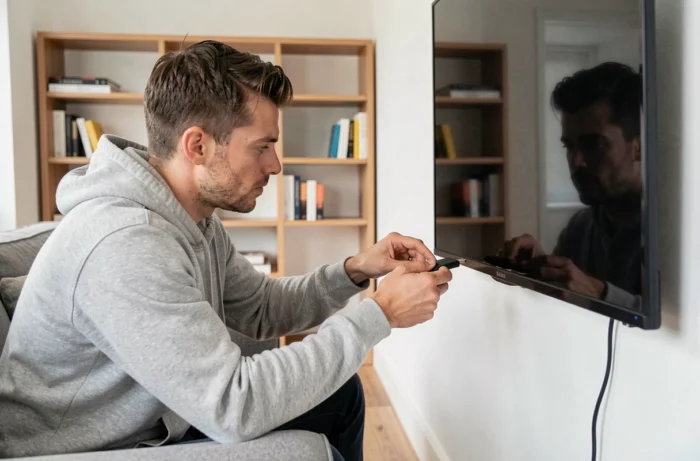
Your television is plugged in, the internet connection is working, but the app store displays three dusty apps from 2019. This is the most common situation when you want to receive IPTV directly on your TV without going through an operator’s box. The problem does not come from the television itself, but from what its operating system allows or refuses to install.
Operating System Limitations: Why Some Smart TVs Block IPTV
Not all Smart TVs are equal when it comes to IPTV applications. A Samsung TV running an old version of Tizen or a LG TV on a dated version of webOS only offers a limited store, sometimes devoid of players like IPTV Smarters or GSE Smart IPTV. You end up with a screen connected to Wi-Fi but unable to read an M3U stream.
On recent LG webOS models, one development deserves attention: some IPTV players now require a device key in addition to the MAC address to activate the service remotely. Tutorials that only cover the MAC address are therefore partially outdated on these TVs.
When you want to connect IPTV to TV without a box, the first step is to check exactly what your TV’s store offers. Open the integrated app store and look for IPTV Smarters Pro, GSE Smart IPTV, or IBO Player. If none appear, there’s no point in insisting: you need to use another method.
IPTV Application on Android Smart TV: The Most Direct Method
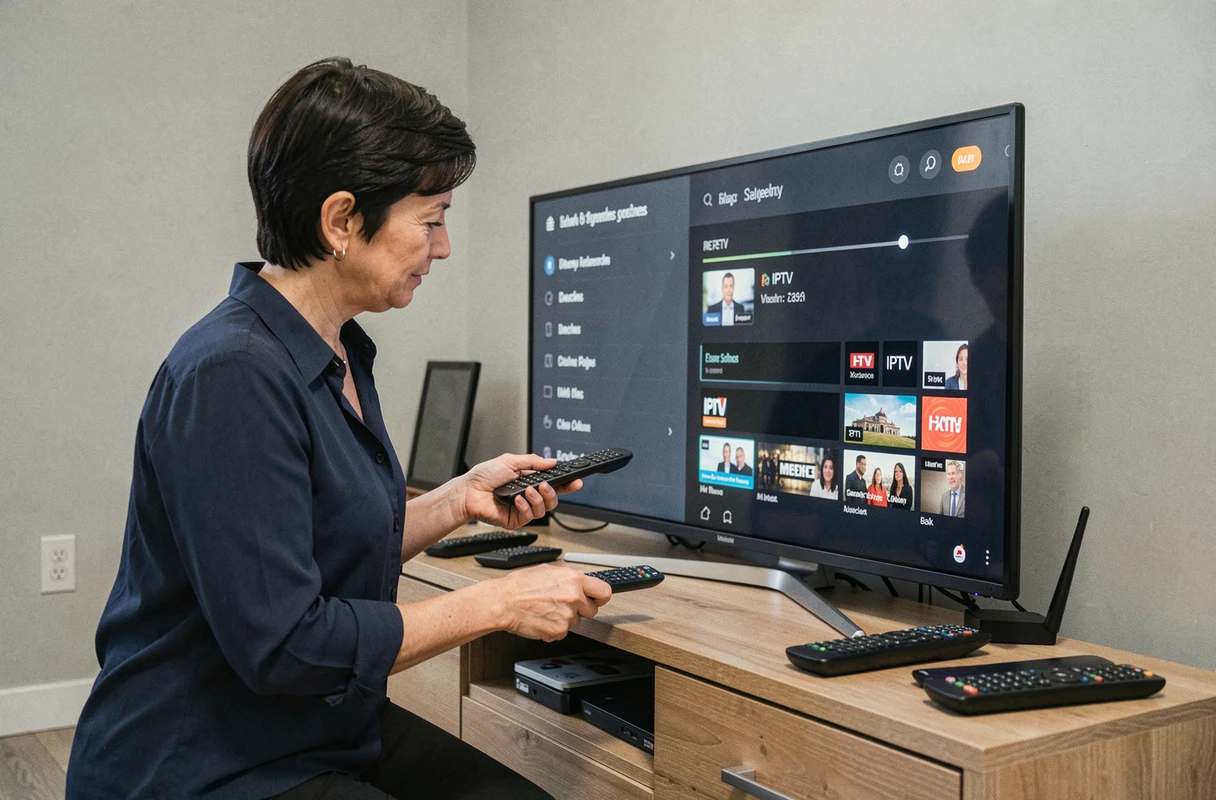
Televisions running Android TV or Google TV have access to the full Play Store. This is the simplest case: you install an IPTV player just like you would install any application on a phone.
Setup with IPTV Smarters Pro
From the TV’s Play Store, search for IPTV Smarters Pro. After installation, the app offers two connection modes: Xtream Codes credentials or importing an M3U file. The first is more convenient, while the second offers more control over the channel list.
- Xtream Codes credentials: enter the server URL, username, and password provided by your IPTV service. The channel list loads automatically.
- M3U file: retrieve the M3U link from your provider, paste it into the designated field. Be sure to check that the URL starts with “http” and not a local path.
- EPG settings: if your provider gives a program guide URL, add it in the settings to display the schedules next to each channel.
Once the list is loaded, first test a standard definition channel. If the picture is smooth, move on to HD channels. Buffering issues almost always come from the network, not the application.
Prefer Ethernet Cable over Wi-Fi
On a high-quality IPTV stream, 2.4 GHz Wi-Fi regularly causes stuttering. If your TV has an Ethernet port, plug an RJ45 cable directly from the router. If not, switch to the 5 GHz Wi-Fi band in the TV’s network settings. Feedback on this point varies depending on wall thickness and distance to the router, but a wired connection remains the most reliable solution.
Built-in Web Browser: The Alternative When the Store is Empty
This is a method that general articles rarely mention. On Samsung Tizen and LG webOS, the built-in web browser allows access to online IPTV players via a simple URL, without needing to install anything.
The principle: your IPTV provider gives you a link to a web portal. You open the TV’s browser, enter the URL, input your credentials, and the stream starts directly in the browser. No need to go through the store, no app to download.
The limitations are real. Navigation with the remote is slow, the web player doesn’t always manage the program guide, and video quality may cap below what a native app offers. For daily use, this method is more of a workaround than a replacement for a real player.
Non-Connected TV or Too Old Store: The Android TV Box as a Gateway
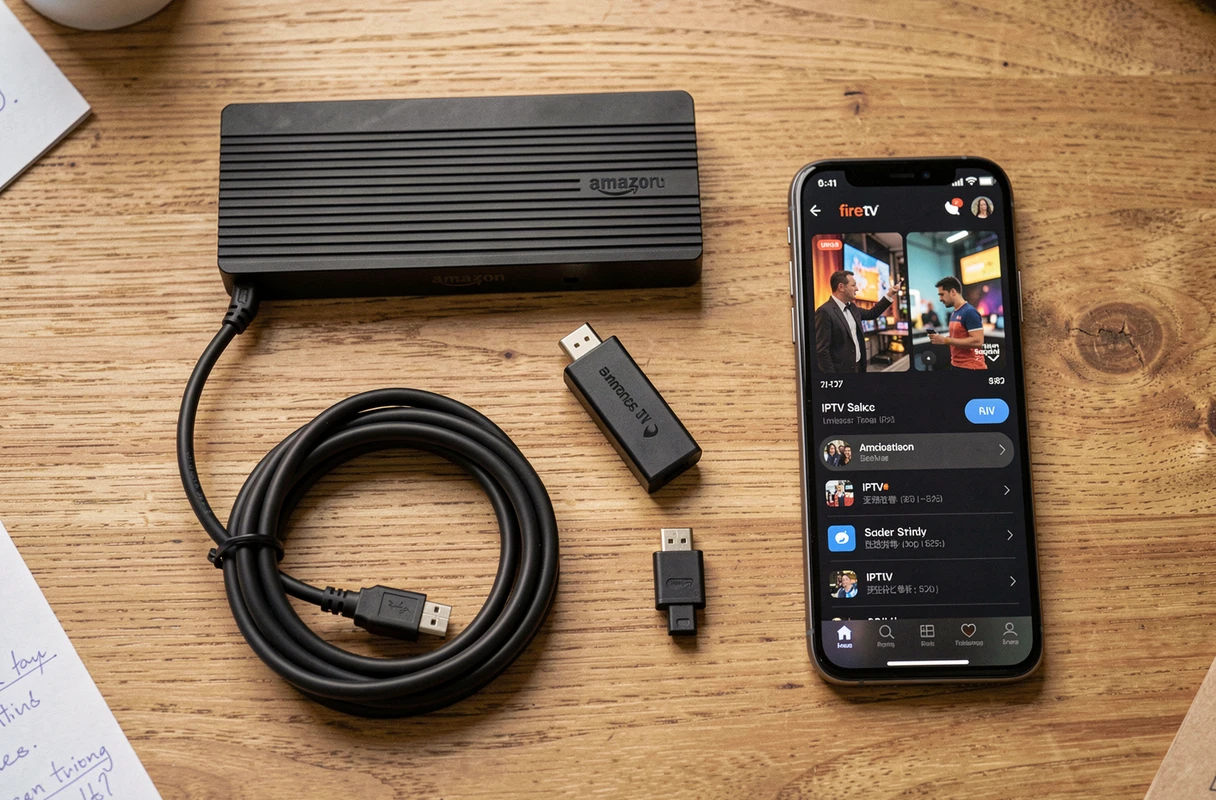
When the television has no internet connection at all (or an operating system too old to run anything), an Android TV box plugged in via HDMI turns any screen into a Smart TV. We are talking about small devices like Amazon’s Fire TV Stick, the Xiaomi TV Stick, or generic Android TV boxes.
The setup takes a few minutes: HDMI to the TV, USB power, connection to the home Wi-Fi. Then, you find the Play Store and the same installation procedure as a native Android Smart TV.
What to Check Before Buying
- HDMI port compatibility: very old TVs sometimes only have HDMI 1.4, which limits resolution. Check the port version in the manual.
- Processor power: entry-level boxes struggle with high-definition streams. Aim for a model with at least a quad-core processor and sufficient RAM.
- Firmware updates: a box that no longer receives updates will eventually pose the same problems as an outdated Smart TV. Prefer brands that provide regular software support.
- Video codec: support for H.265 (HEVC) reduces the necessary bandwidth and improves image quality at equal bitrate.
The Android TV box remains the most versatile solution for closed televisions. It provides access not only to IPTV applications but also to traditional streaming platforms.
Whichever method you choose, the stability of the stream depends more on the network than on the device. Update the firmware of your TV or box, prefer a wired connection, and test your speed before concluding that a problem comes from the application. A stable connection on the 5 GHz band or via Ethernet resolves most stuttering and black screen issues.